

Description
Audient Console USB sound card with preamps
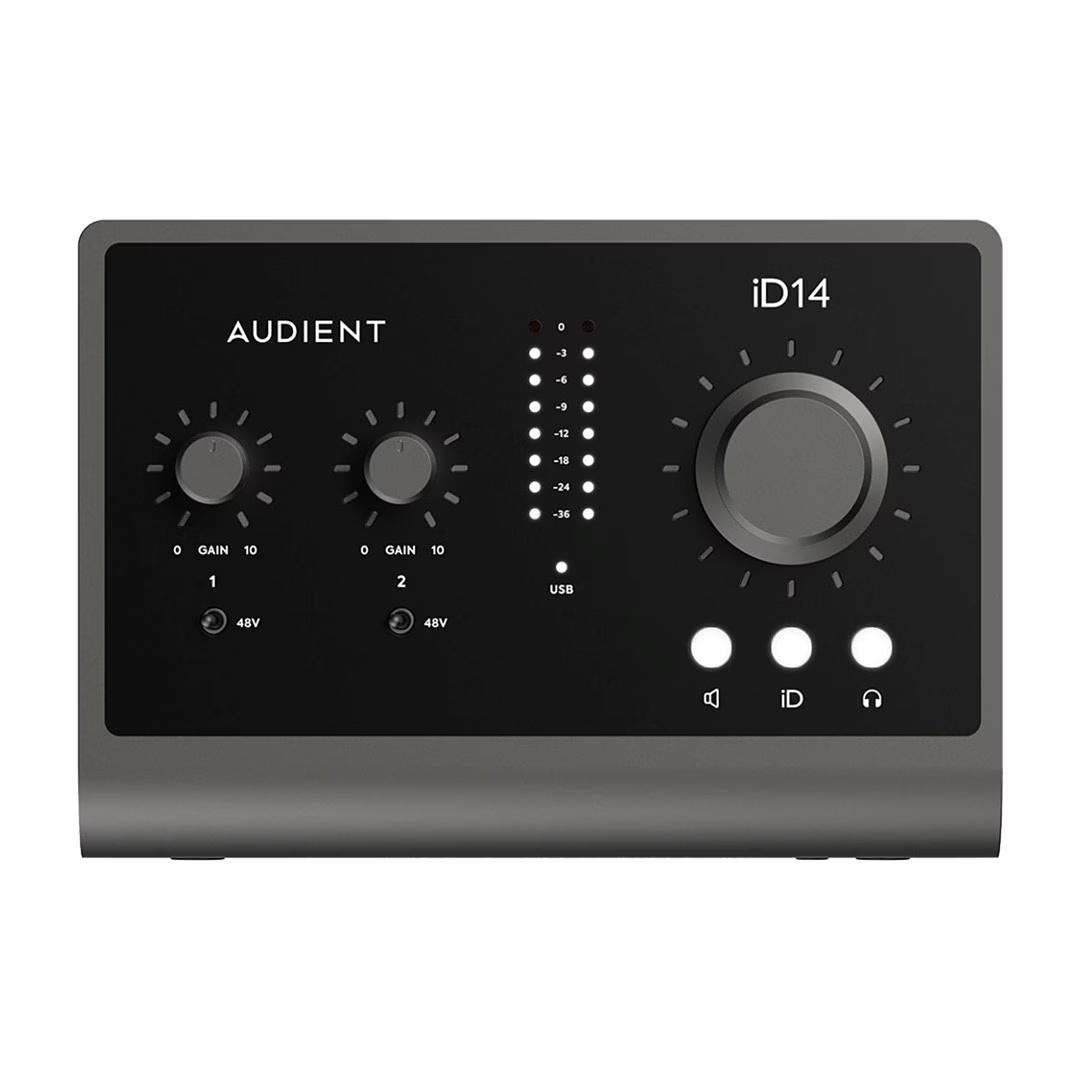
The two-microphone-input USB sound card preamps are based on the design of Audient mixing consoles and use a discreet class A circuit. The combined XLR/TRS sockets from Amphenol accept a microphone or line device, and the preamps provide up to 58 dB of gain. The phantom power switches send 48 V of power to each microphone input, up to 10 mA per channel. In the iD app you can add +10 dB of gain to the input and reverse its polarity.
Instrument input and two headphone outputs
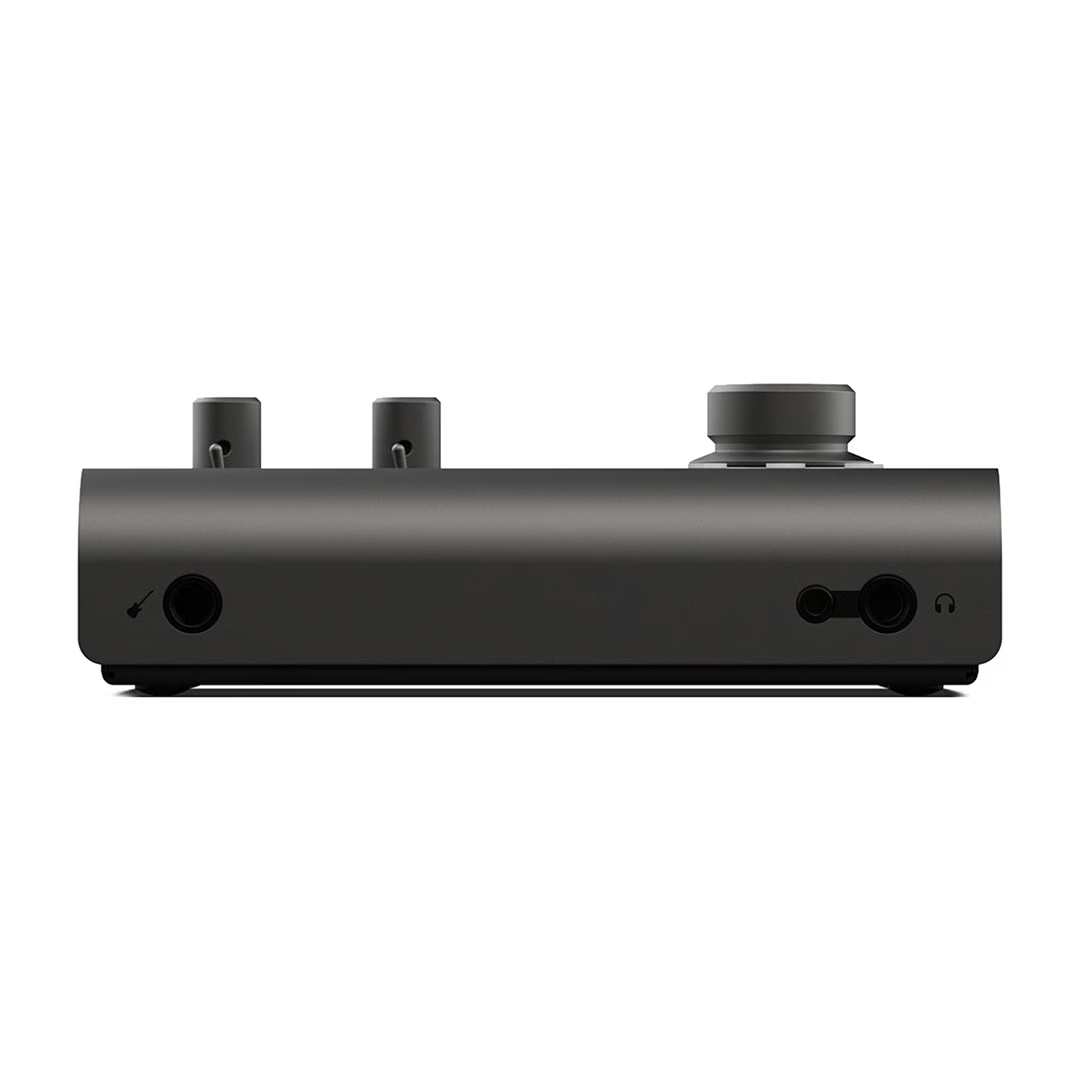
The front-panel JFET instrument input belongs to channel 1: when a TS plug is connected, it replaces the microphone signal on that channel. The independent headphone amplifier delivers the same signal to the 3.5 mm and 6.35 mm sockets at the same time, so you can listen with two pairs of headphones. The headphone amplifier drives headphones with an impedance of up to 600 Ω.
Volume control and iD mixer
The large aluminium rotary knob controls the volume of the speakers and headphones, and pressing the knob mutes the selected output. In ScrollControl mode, the rotary knob becomes a virtual scroll wheel with the help of the iD button, which you can use to control the parameters of recording software and plugins. In the iD mixer app you can create two separate monitor mixes alongside the main mix, and use the Talkback, Mono, Dim and Alt functions. The round-trip latency of the mixer is 0.65 ms at 44.1 kHz and 0.31 ms at 96 kHz.
Optical input and outputs
In ADAT mode, the optical input adds 8 channels at 44.1 and 48 kHz and 4 channels at 88.2 and 96 kHz. In S/PDIF mode, the optical input carries a stereo signal at sampling rates up to 96 kHz. The rear panel has two pairs of balanced TRS outputs, whose signal can be routed in the iD mixer, for example to a second pair of speakers or to the headphone amplifier. With the loopback function you can record or stream the computer’s sound through inputs 11 and 12.
Installation and cleaning
- Download the iD app from the Audient website.
- On a Mac, drag the app into the Applications folder. On Windows, run the installer, connect the sound card to the computer during installation, and restart the computer after installation.
- Connect the sound card to a USB 3.0 or newer port on the computer with the supplied USB-C cable.
- Launch the iD app. If a firmware update is available, the app will ask for permission to install it.
- Register the sound card in Audient ARC to receive firmware updates, plugins and software.
Clean the sound card with a dry cloth only.
Included in the box
- Audient iD14 MKII USB sound card
- USB-C cable with a USB-C plug at each end
- Quick start guide











































Reviews
There are no reviews yet.