

Description
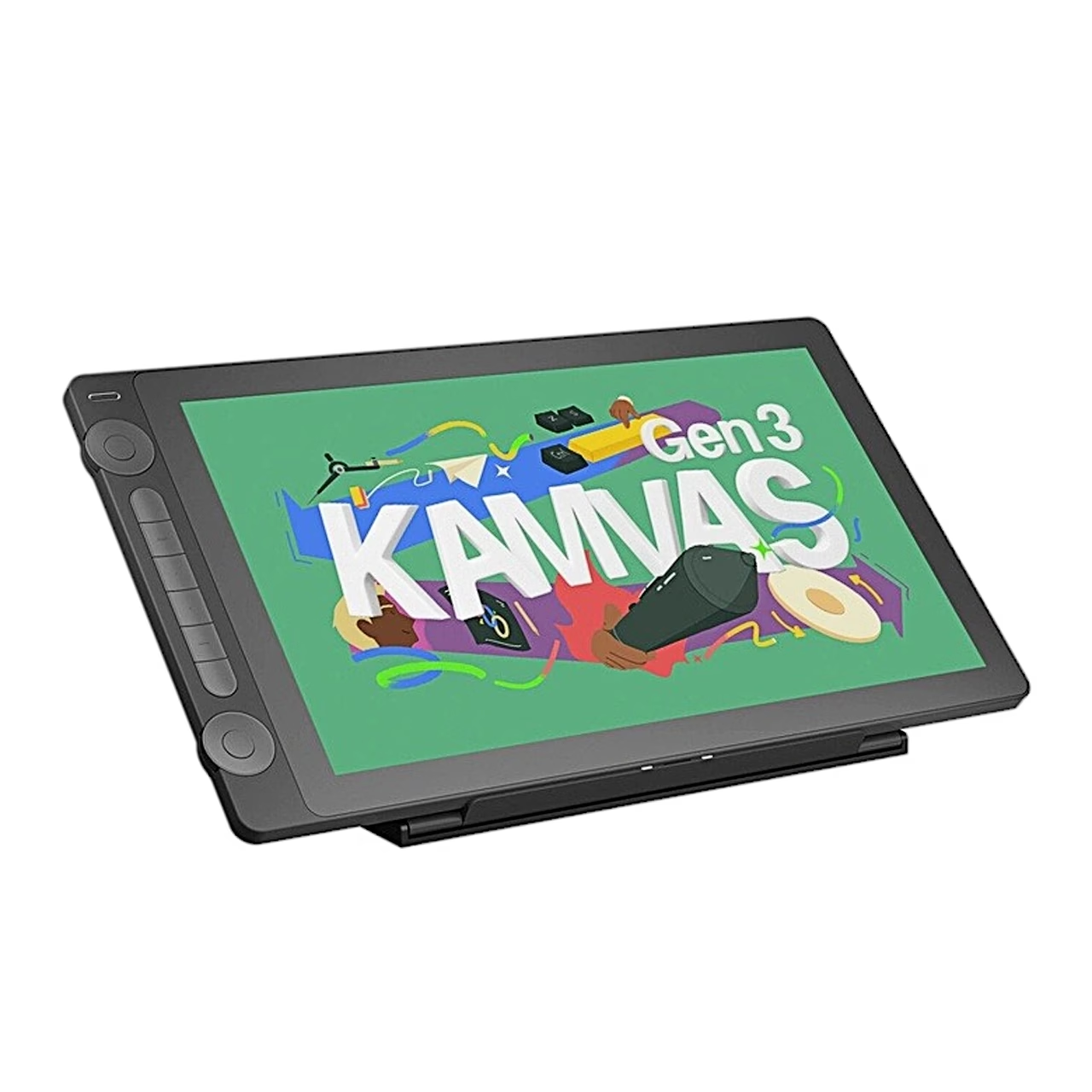
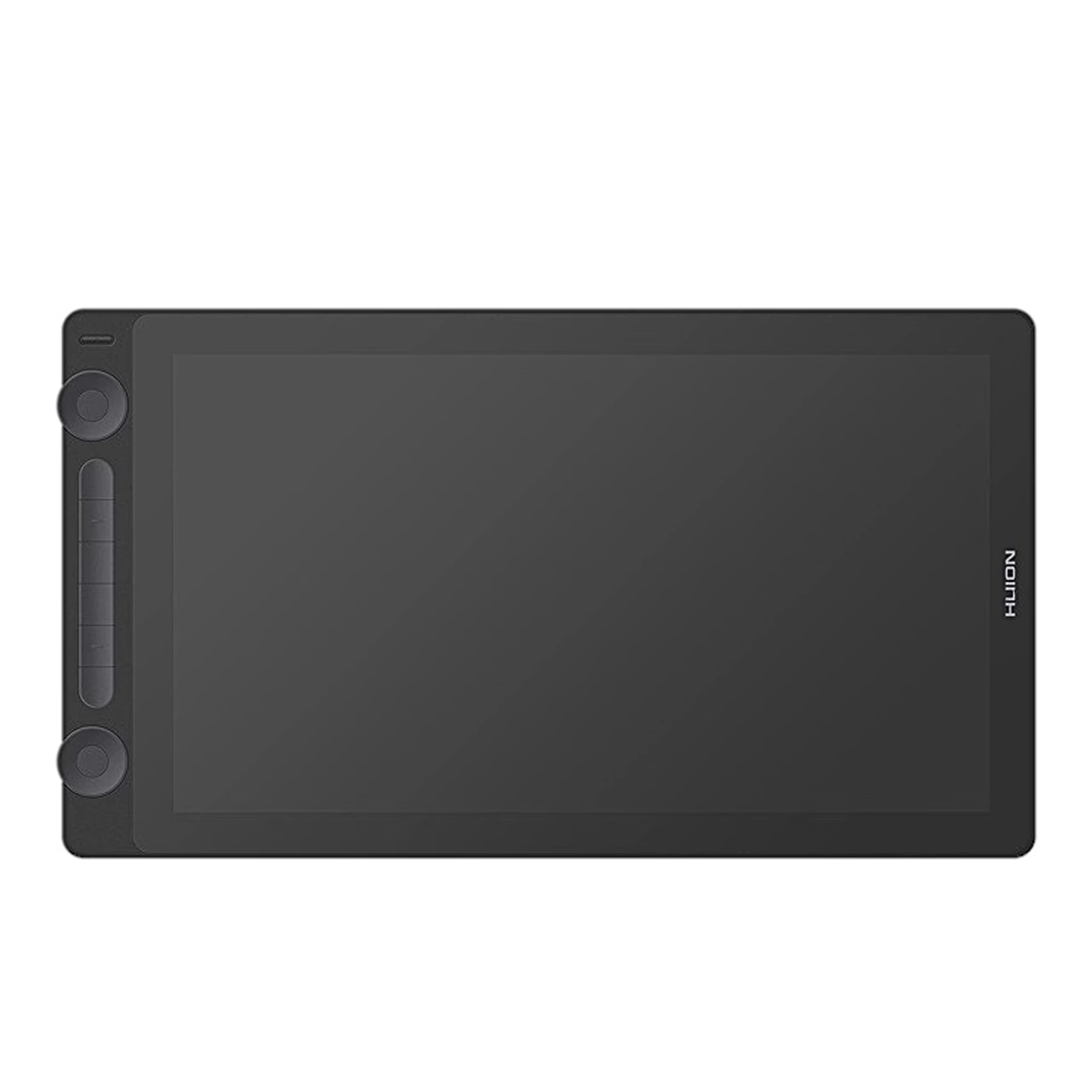
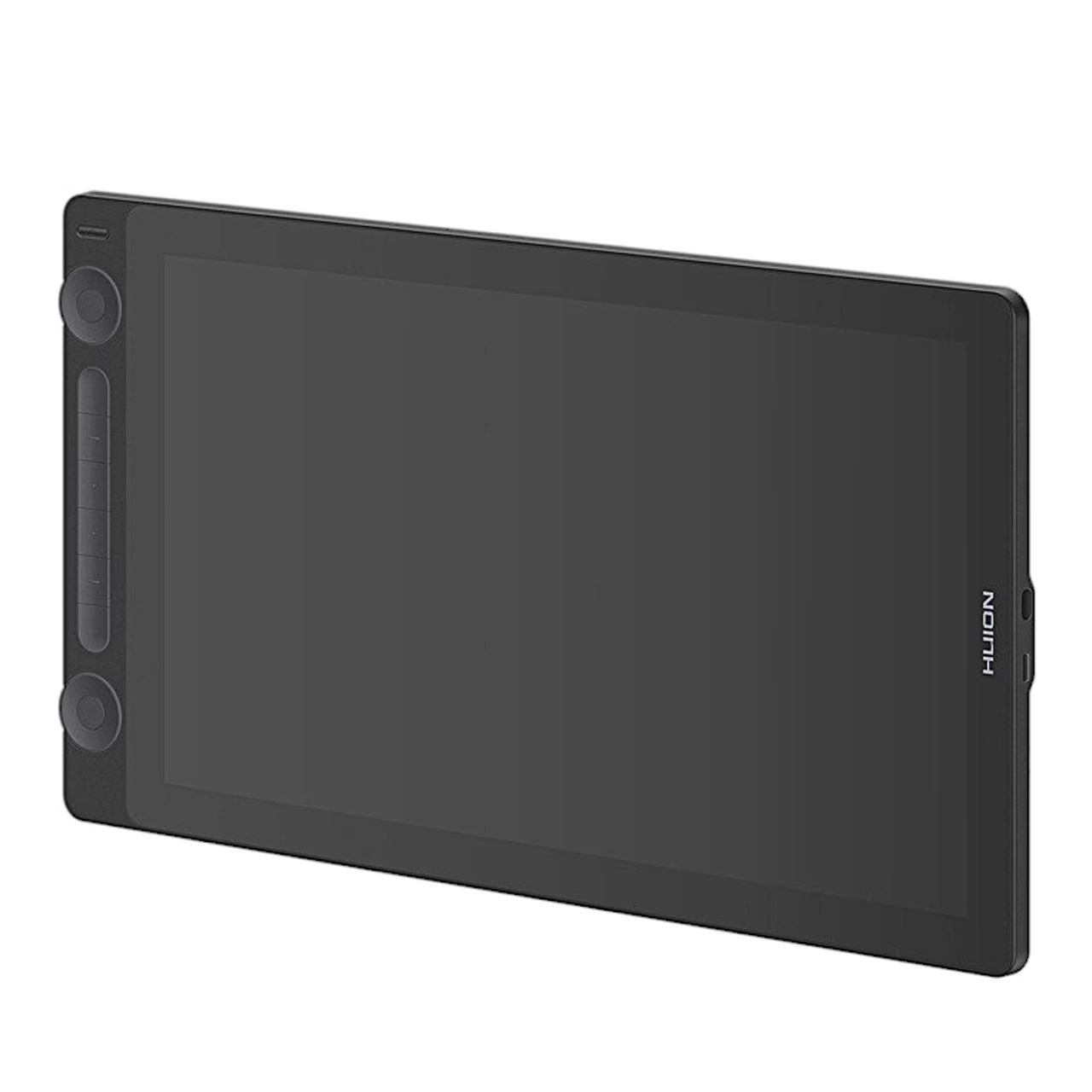
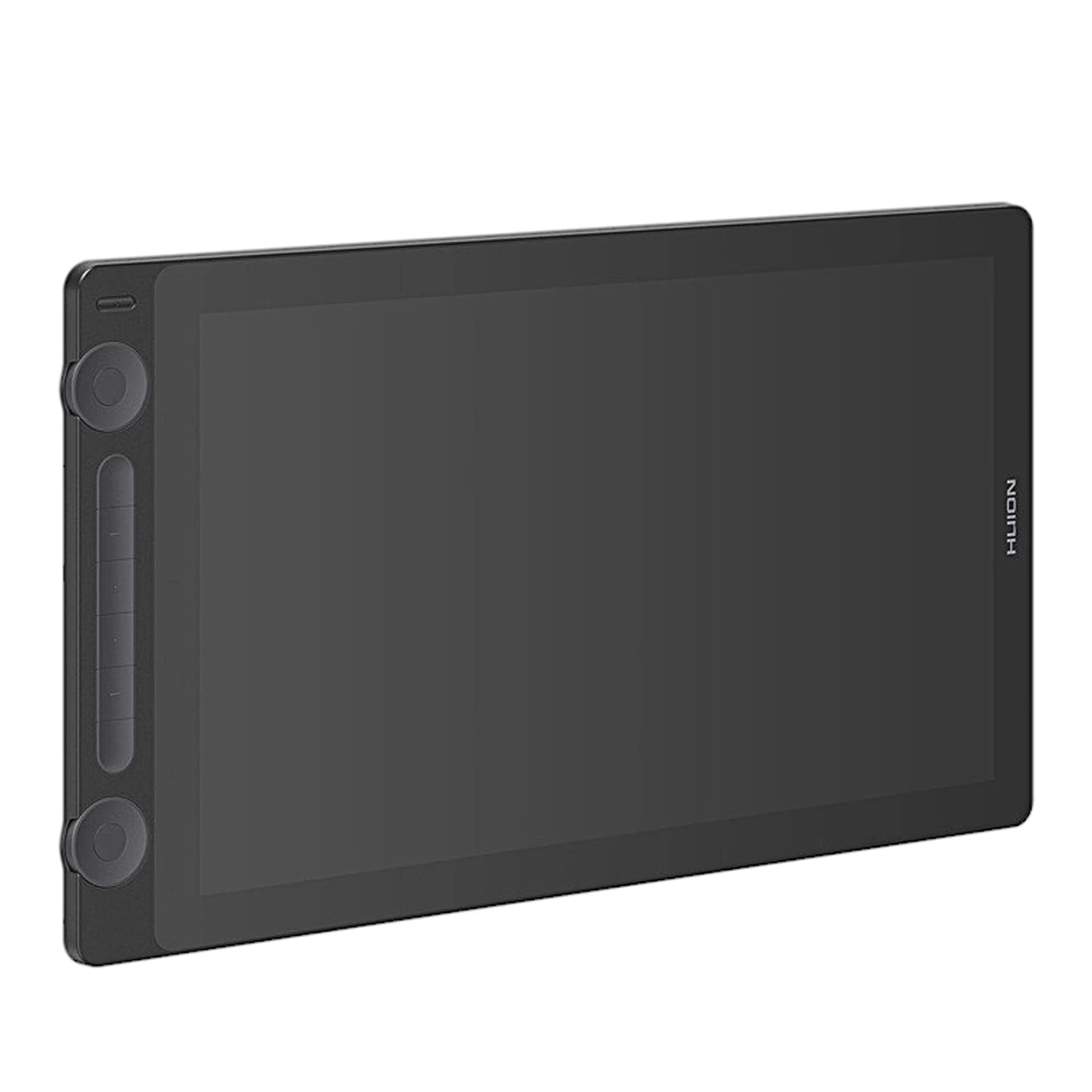
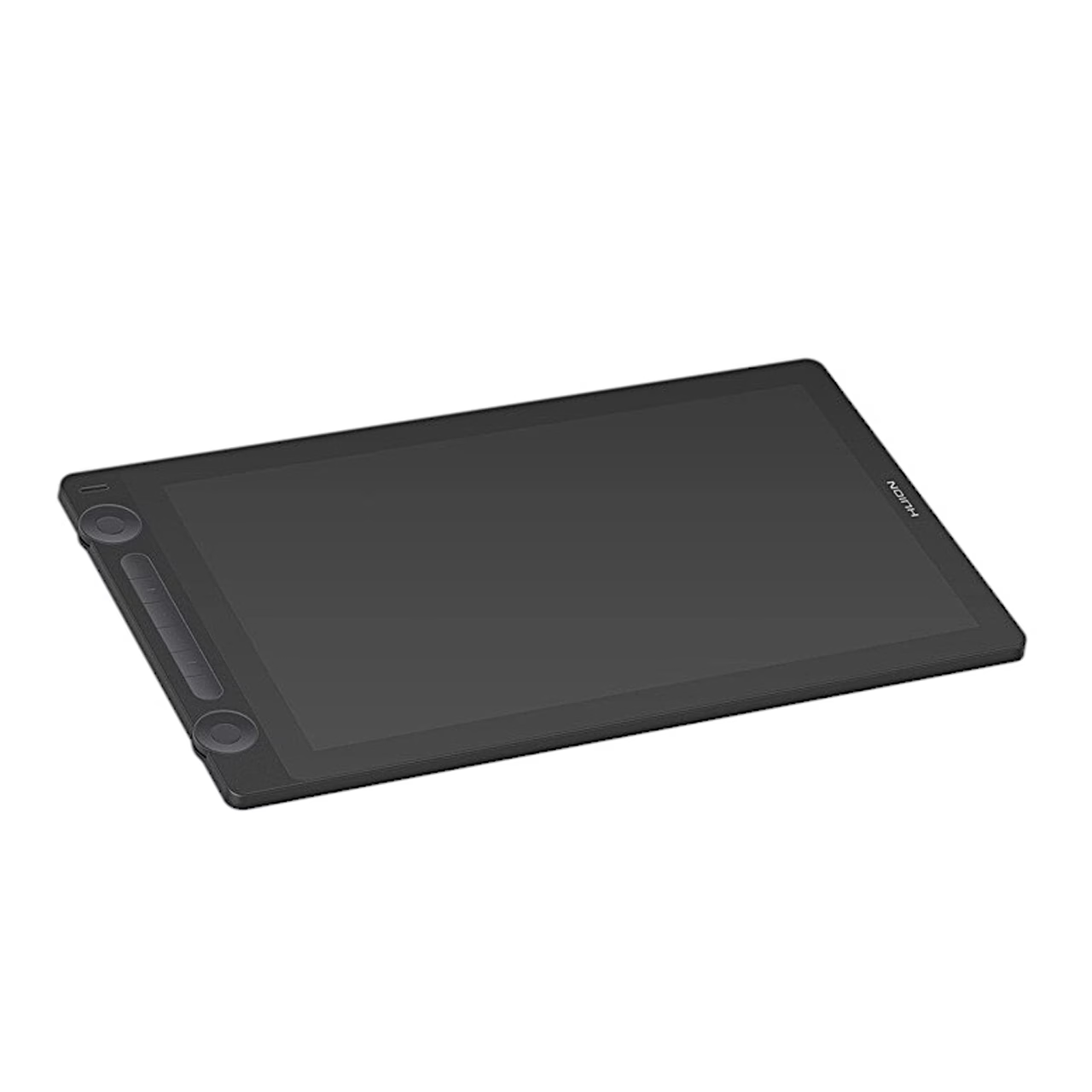
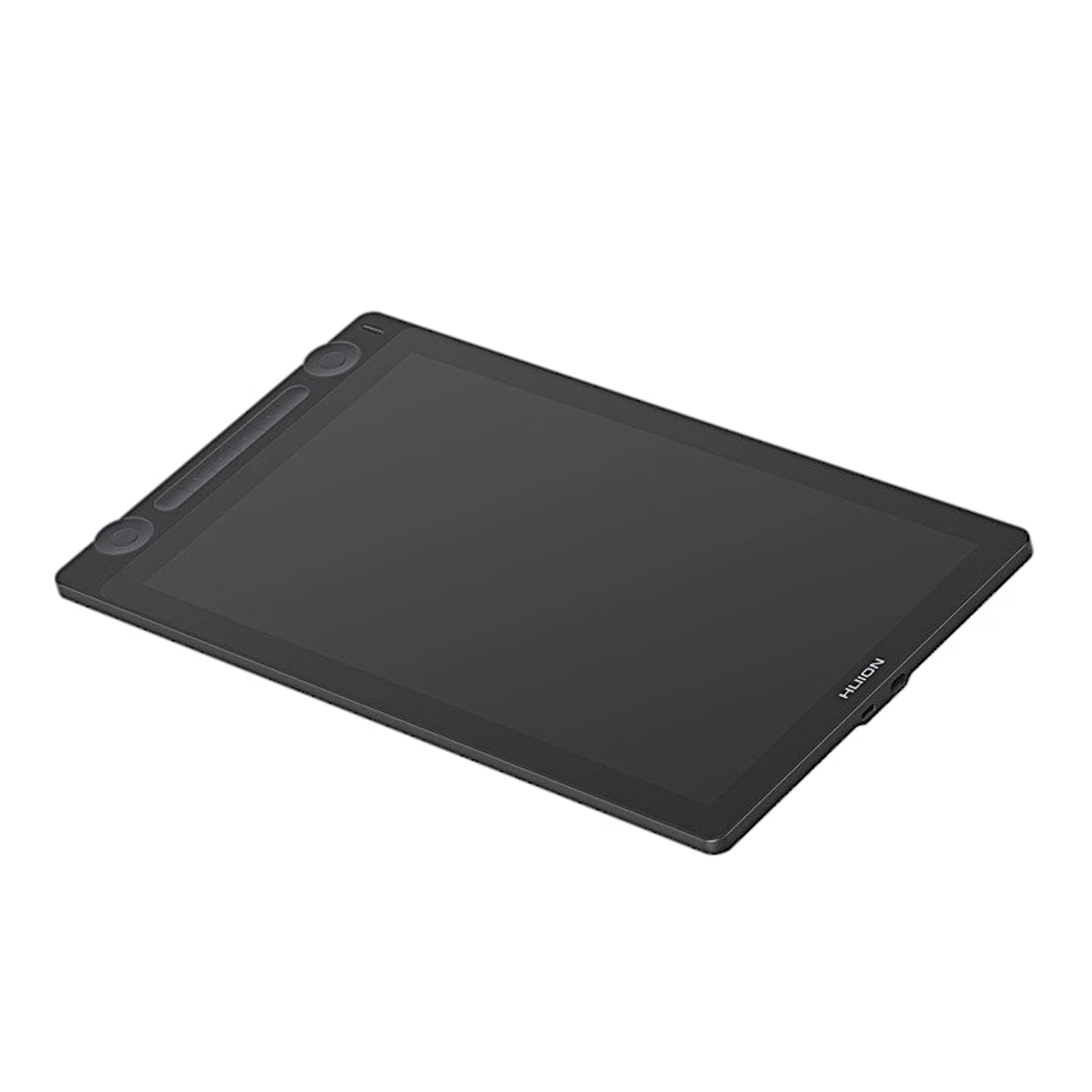
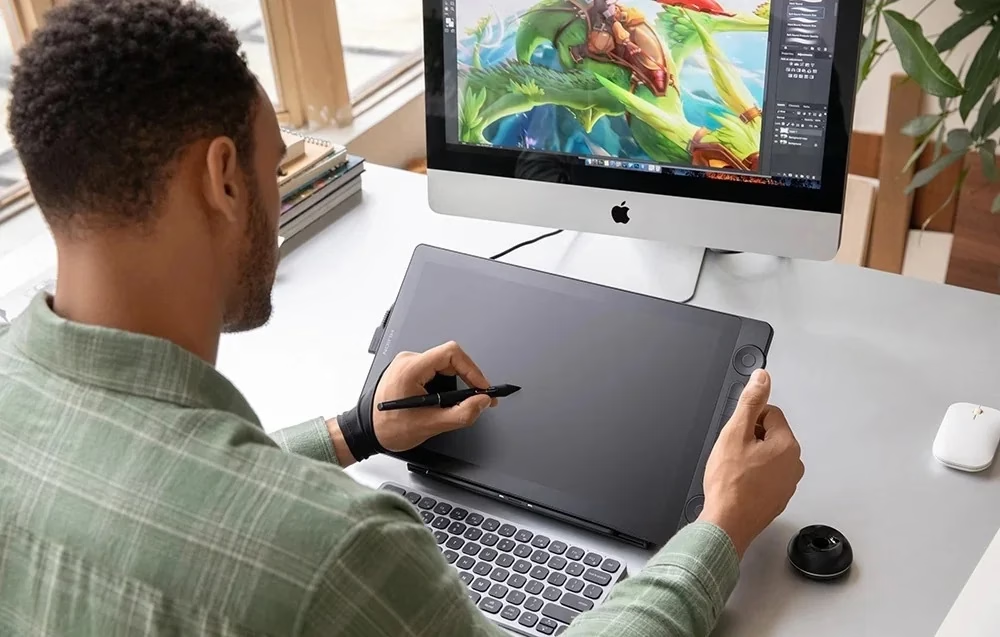
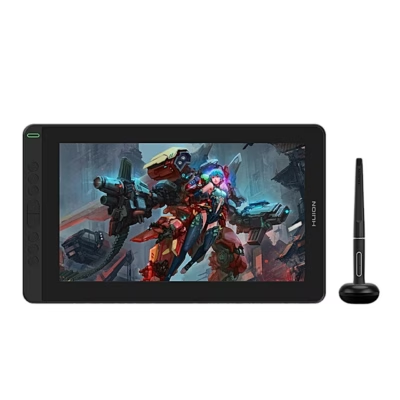
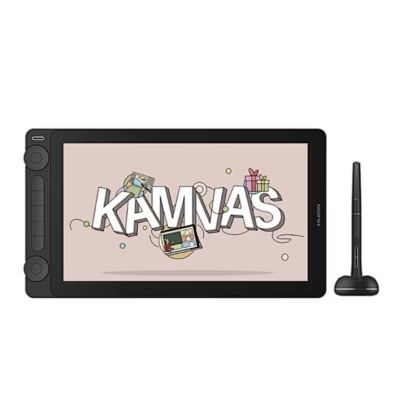
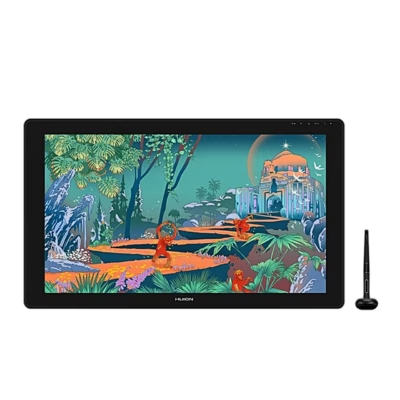
Pen display with two dials and a PenTech 4.0 pen
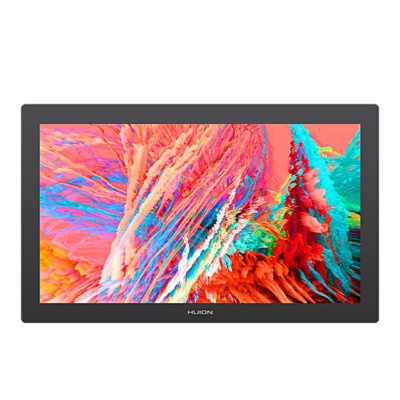
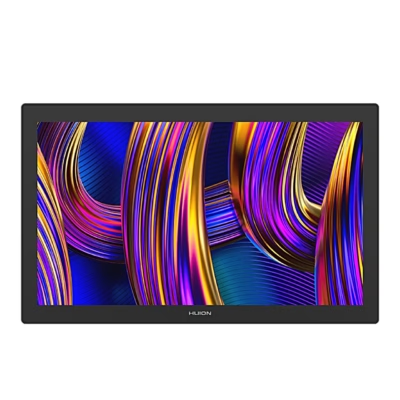
The Huion Kamvas 16 Gen 3 GS1563 is a pen display whose 15.8-inch IPS screen shows the image at QHD resolution, 2560 × 1440 pixels. The active area is 350 × 197 mm and the tablet weighs 1.245 kg.
Fully laminated low-sparkle glass
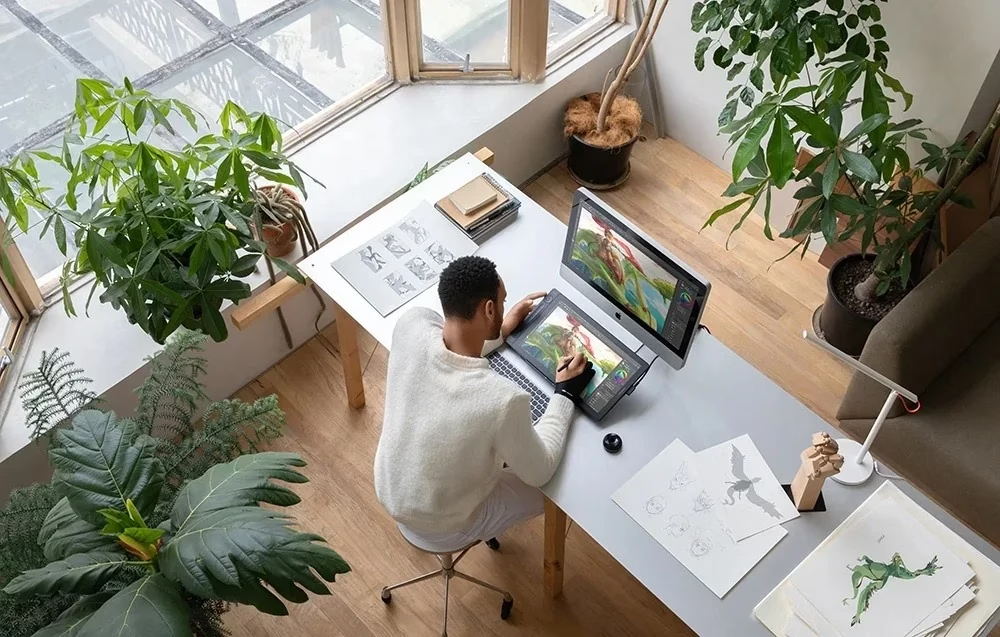
The screen is covered with second-generation etched anti-glare glass whose low-sparkle surface keeps the image clear on plain backgrounds. The glass is fully laminated, so the cursor stays under the pen tip. The screen covers 120% of the sRGB colour volume, and in the on-screen menu you choose Native, sRGB, Rec. 709 or Adobe RGB colour space.
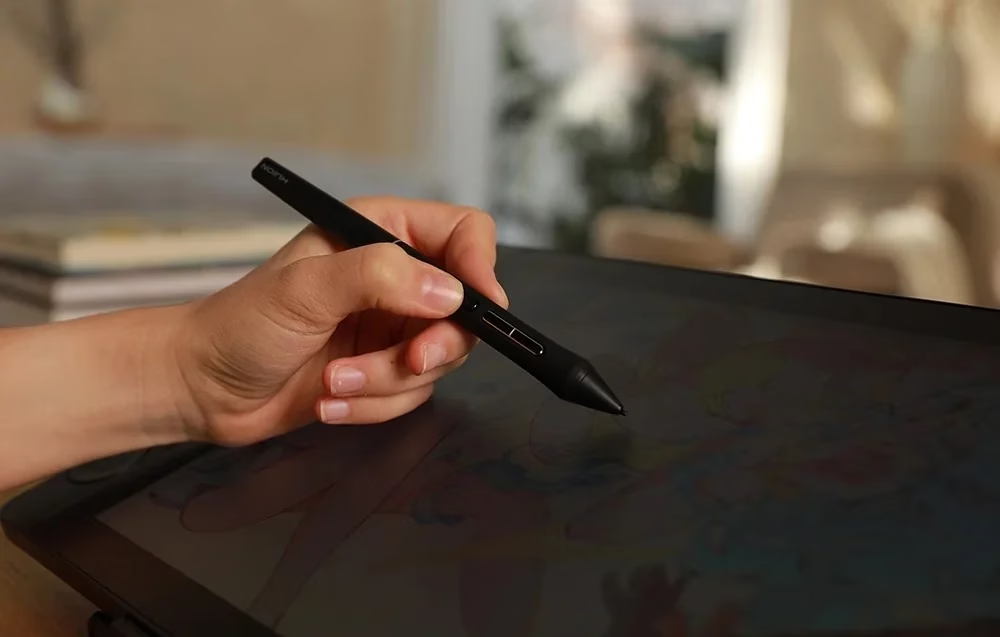
PW600L pen senses 16,384 pressure levels
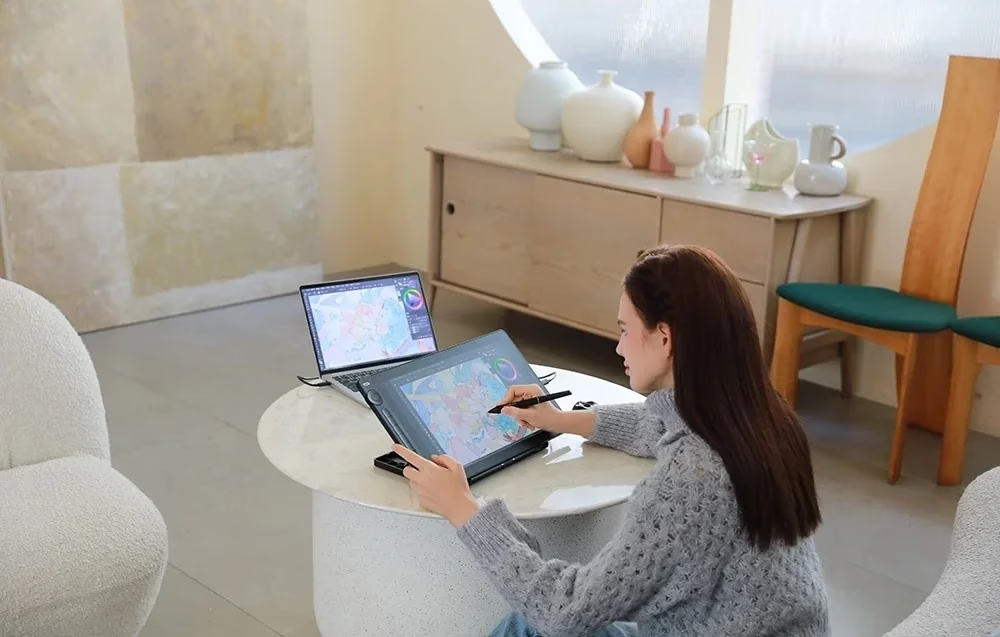
The PenTech 4.0 PW600L pen uses battery-free electromagnetic resonance and needs no charging. It responds from 2 g of pressure, senses tilt up to ±60°, and its tip retracts no more than 0.35 mm. The pen has three side buttons and a dust-resistant silicone grip.
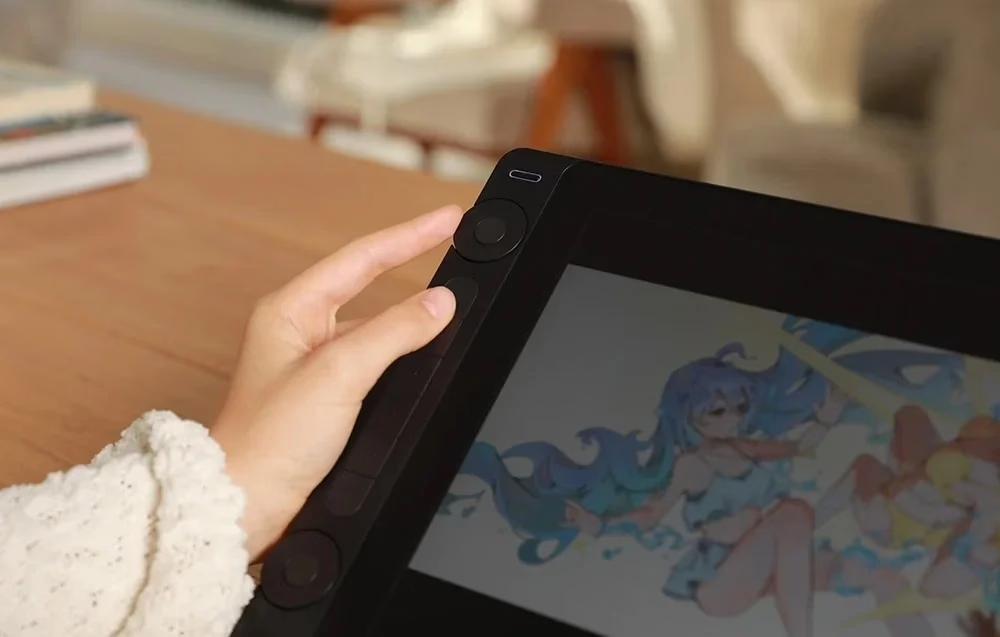
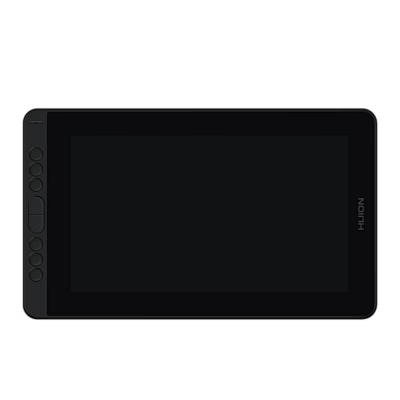
Two dials and six silent keys
On the left edge are two dials and six silent keys plus two function-switch buttons. The dials protrude about 2 mm from the edge and by default zoom, change brush size and scroll; in the driver you can give each dial its own function, such as rotating the canvas or switching layers in Photoshop. On Windows the dials also work without the driver through the Radial menu.
Connection to a computer or Android device
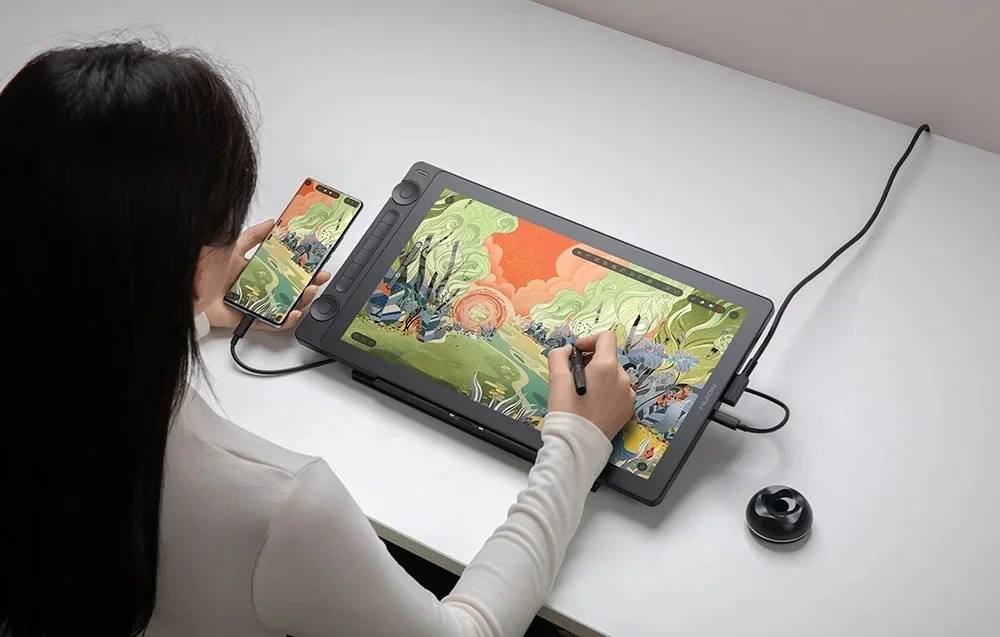
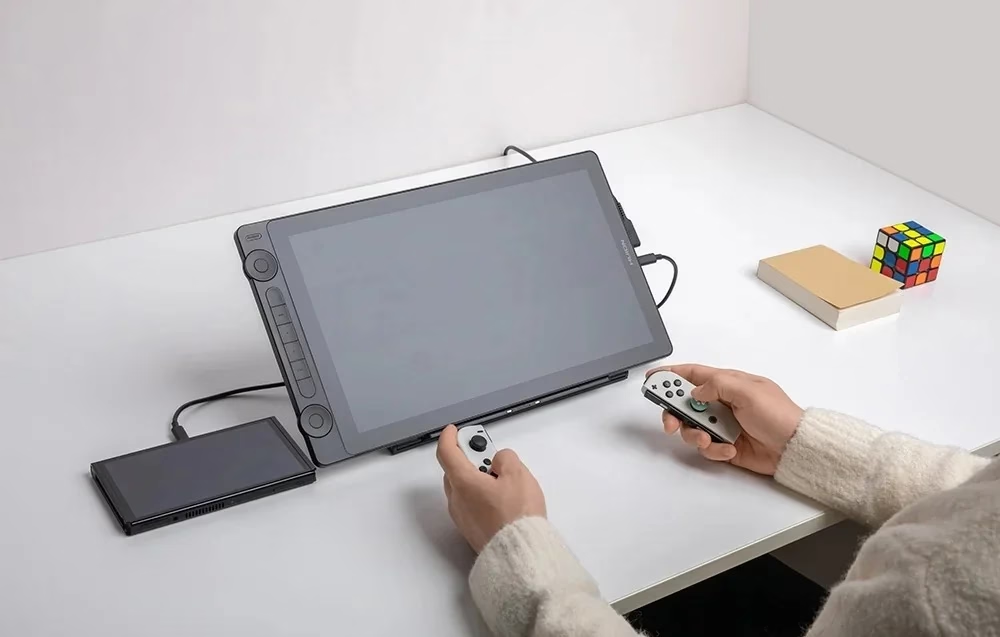
The tablet has a 3-in-1 USB-C port and a full-featured USB-C port through which you can connect it with one cable to a computer, tablet or phone whose USB-C port outputs video over DisplayPort 1.2. The driver works with Windows 10 or later, macOS 10.12 or later and Ubuntu 20.04 LTS. The tablet can also be used without the picture as a pen tablet while you follow your work on the computer monitor.
Getting started
Plug the USB-C end of the 3-in-1 cable into the tablet’s first USB-C port and the USB-A, HDMI and USB-A power ends into the computer. Plug the USB-C to USB-C cable into the tablet’s second port; if the screen does not light up or flickers, connect the USB power cable and power adapter to the tablet’s first port. A short press of the power button turns the tablet on or off, and a 3-second press opens the on-screen menu, which you operate with the pen. In the driver you can rotate the working area by 0°, 90°, 180° or 270° for left-handed use, calibrate the cursor and change the pressure curve.

Replacing the pen nib
The PH06 pen holder contains 10 PN06 replacement nibs. Open the holder and take a new nib, pull the worn nib out with the clip on the back of the holder and push the new nib into the pen until it stops.
In the box
- Pen display Huion Kamvas 16 Gen 3 GS1563, 1 pc
- 3-in-1 cable, 1.8 m
- USB power cable
- Full-featured USB-C to USB-C cable
- USB-A extension cable, 1.2 m
- USB power adapter
- PW600L pen
- PH06 pen holder
- 10 PN06 pen nibs (inside the holder)
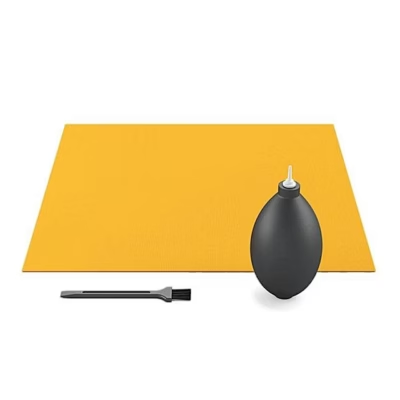
- Cleaning cloth
- Drawing glove
- Quick start guide









































Reviews
There are no reviews yet.