

Description
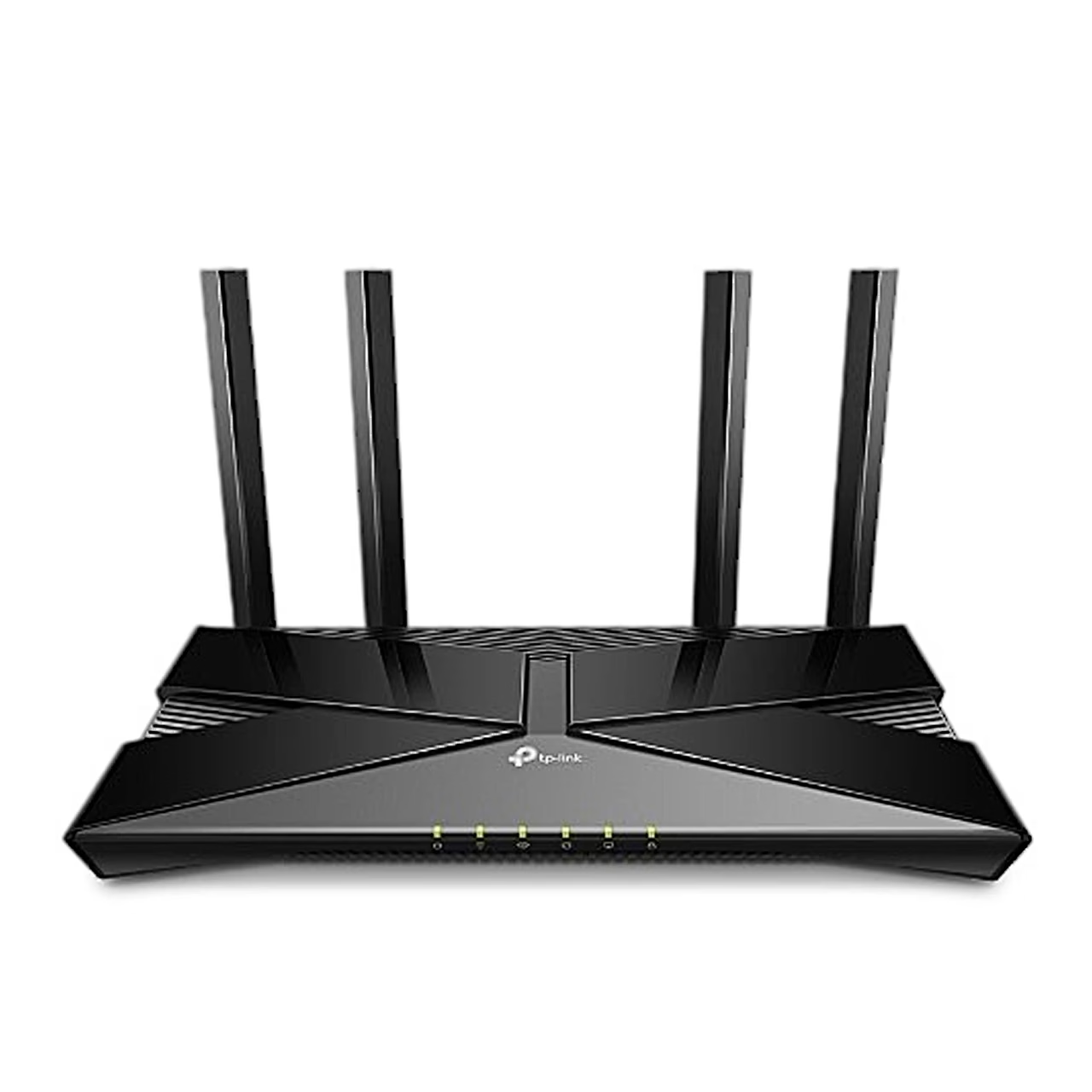
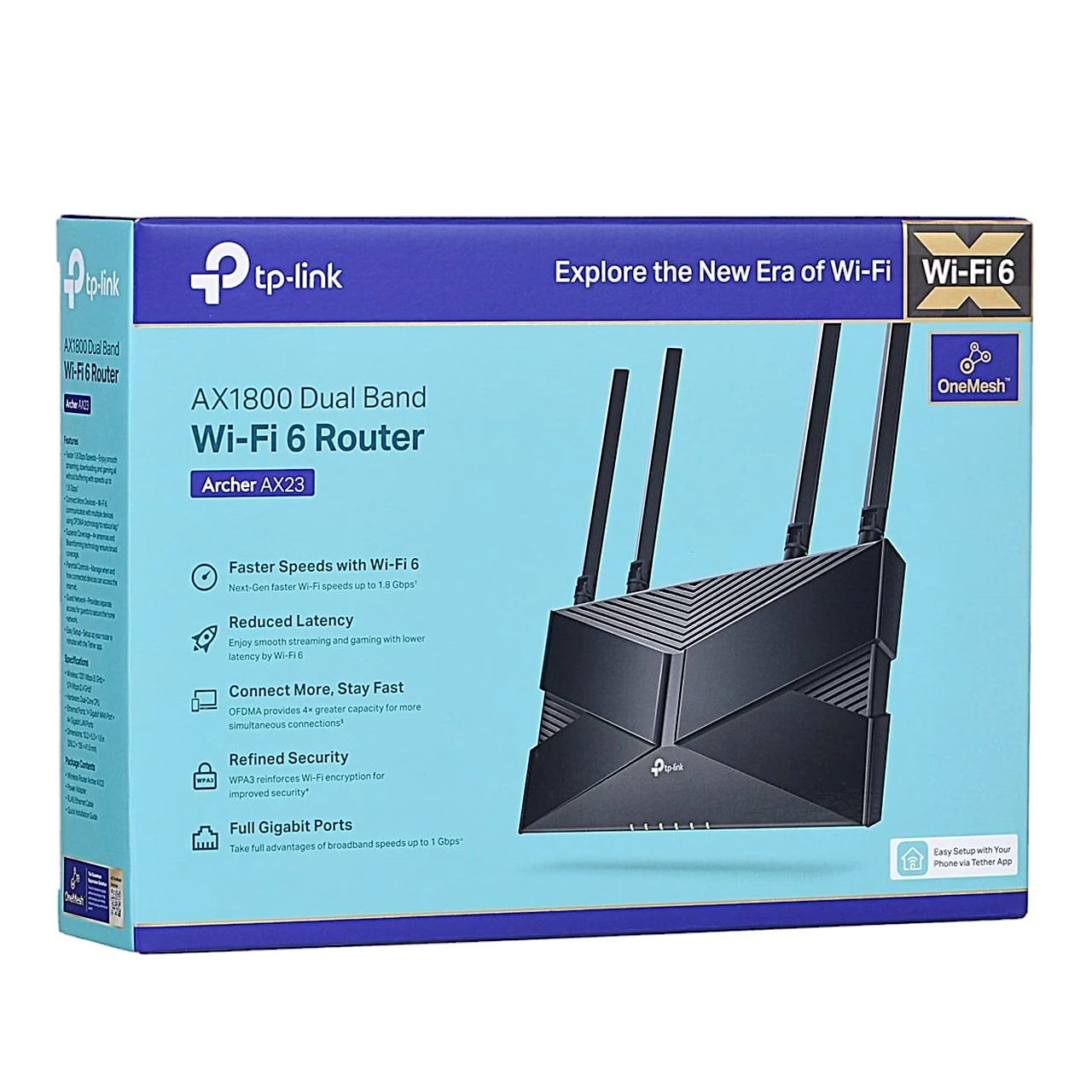
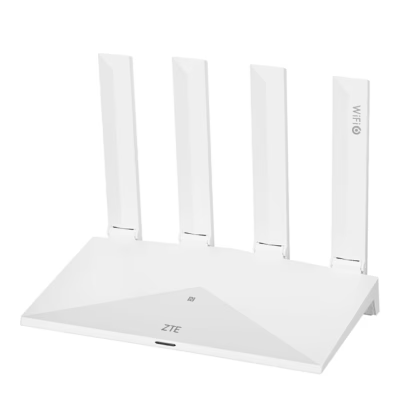
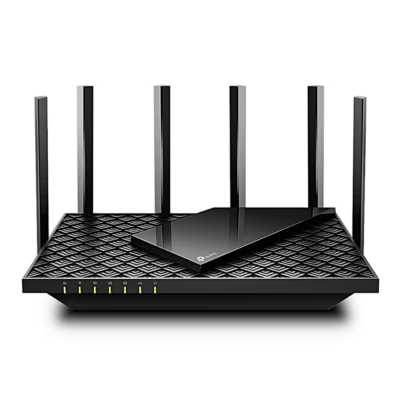
Wi-Fi router with Wi-Fi 6 on two bands
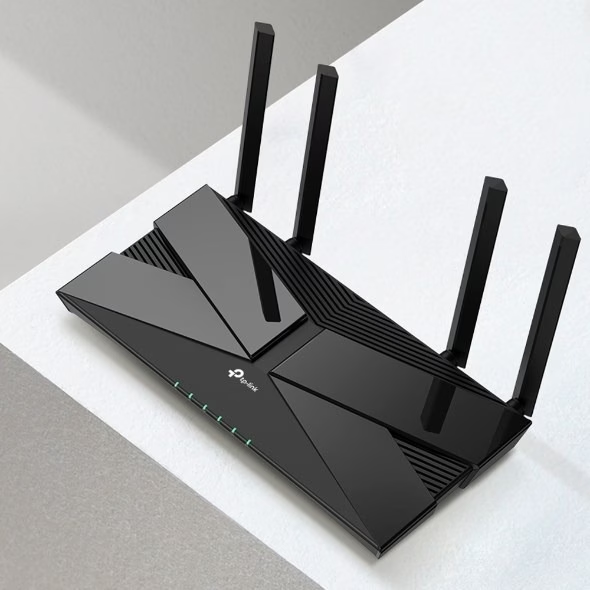
The router also works with older 802.11a/b/g/n/ac devices; Wi-Fi 6 speed, OFDMA and 1024-QAM are available to devices that support 802.11ax. With Smart Connect switched on, both bands share one network name and the router assigns devices to the more suitable band according to actual conditions. Four external antennas carry the signal.
Ports and buttons
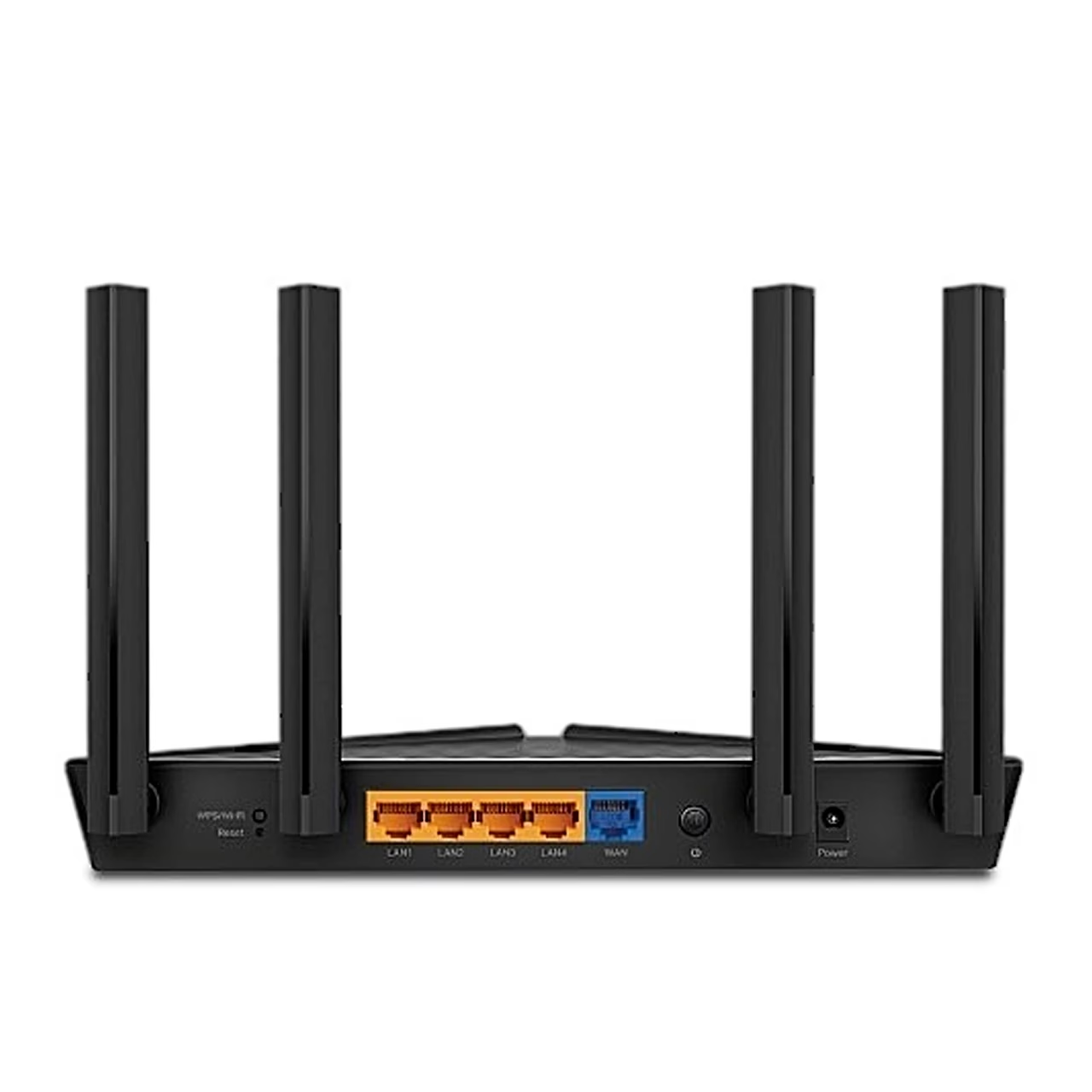
The LAN ports on the back panel are for computers and other wired devices, and the WAN port connects a modem or an Ethernet wall outlet. A 1-second press of the WPS/Wi-Fi button starts connecting a WPS device; holding it for more than 2 seconds turns Wi-Fi on or off.
Setup and network management
You set up the router in a browser at tplinkwifi.net or with the TP-Link Tether app for iOS and Android. The guest network gives visitors Wi-Fi access without opening your main network. Parental control profiles limit web content and daily internet time for each family member. QoS gives selected devices more bandwidth even when the network is busy. With a OneMesh-compatible TP-Link range extender, the router forms one network with a single network name and password. On an existing wired network, the router also works as an access point.
Connecting
- Connect the switched-off modem to the router’s WAN port with an Ethernet cable.
- Switch on the modem and wait about 2 minutes for it to restart.
- Connect the power adapter to the router and switch the router on.
- Check that the power, 2.4 GHz, 5 GHz and internet LEDs are lit.
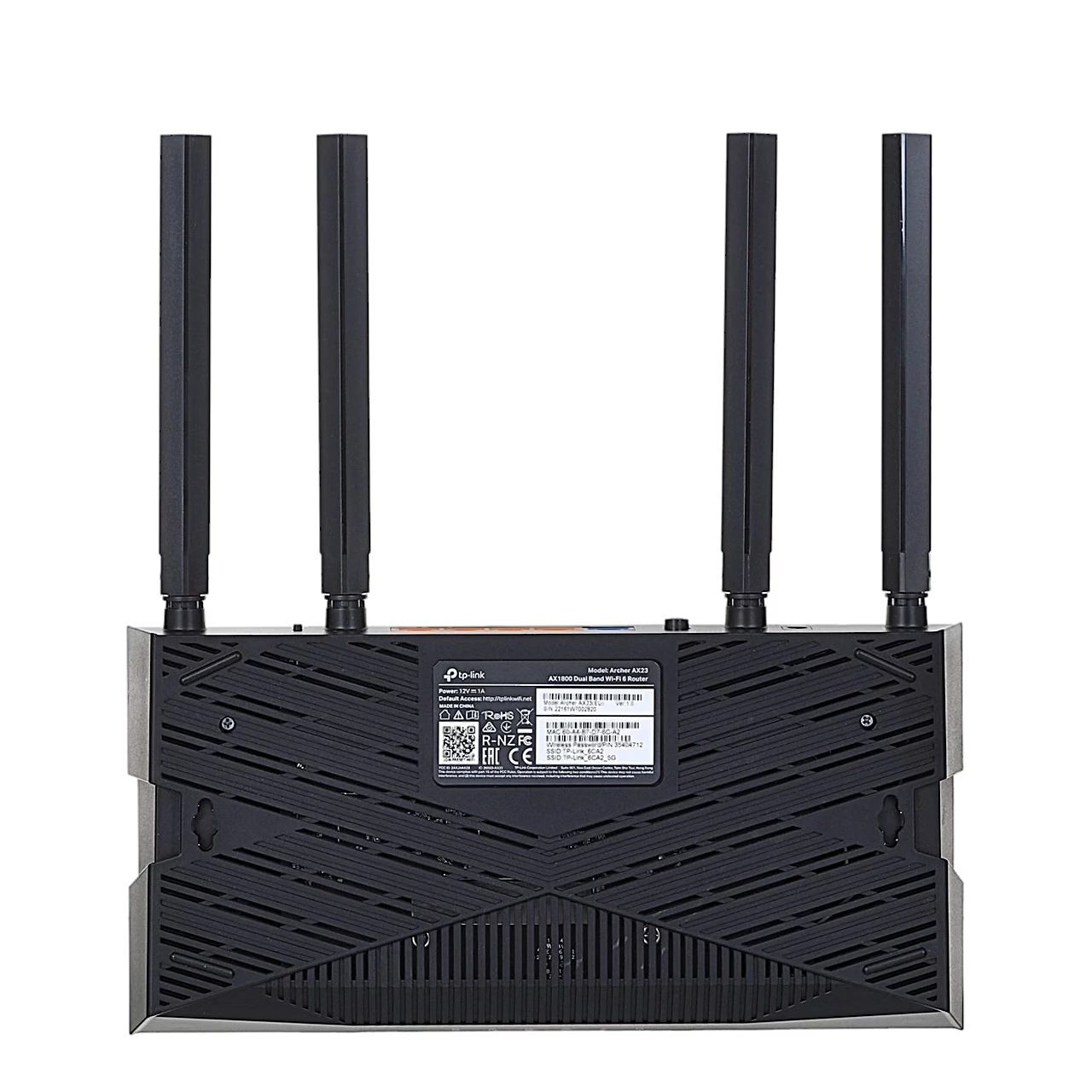
- Connect your computer to a LAN port with a cable, or over Wi-Fi using the network name and password printed on the label on the bottom of the router.
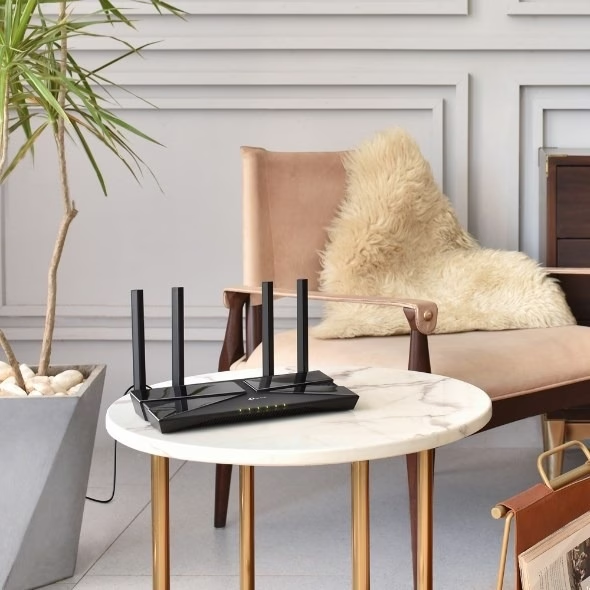
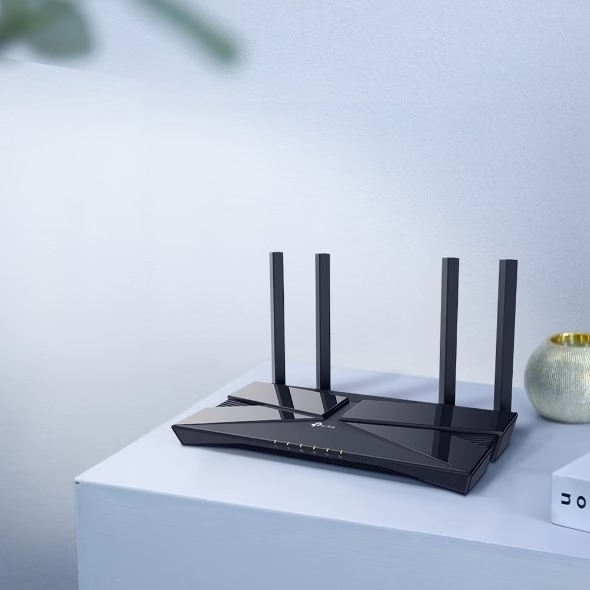
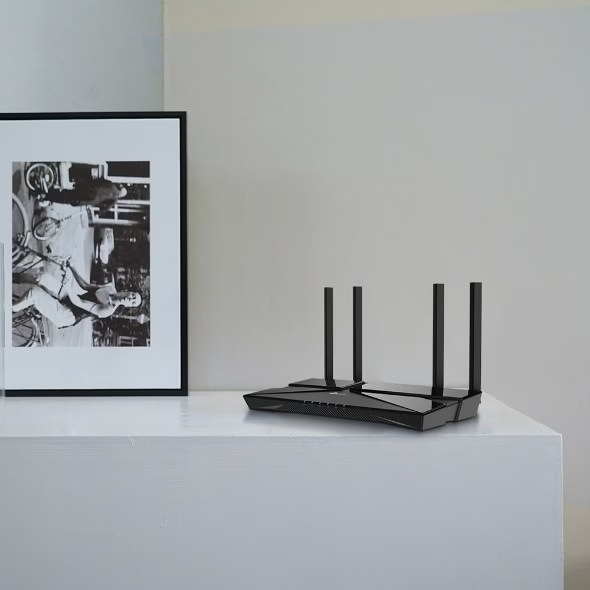
The router stands on a shelf or desk; for wall mounting there are two holes on the bottom 211 mm apart, and the screws must be at least 20 mm long.
Maintenance and firmware
You update the firmware in the web interface, and a router linked to a TP-Link account notifies you of important firmware updates. The router can be set to reboot regularly at a set time. To restore factory settings, hold the Reset button for about 6 seconds until the power LED flashes.
In the box
- Wi-Fi router TP-Link Archer AX23
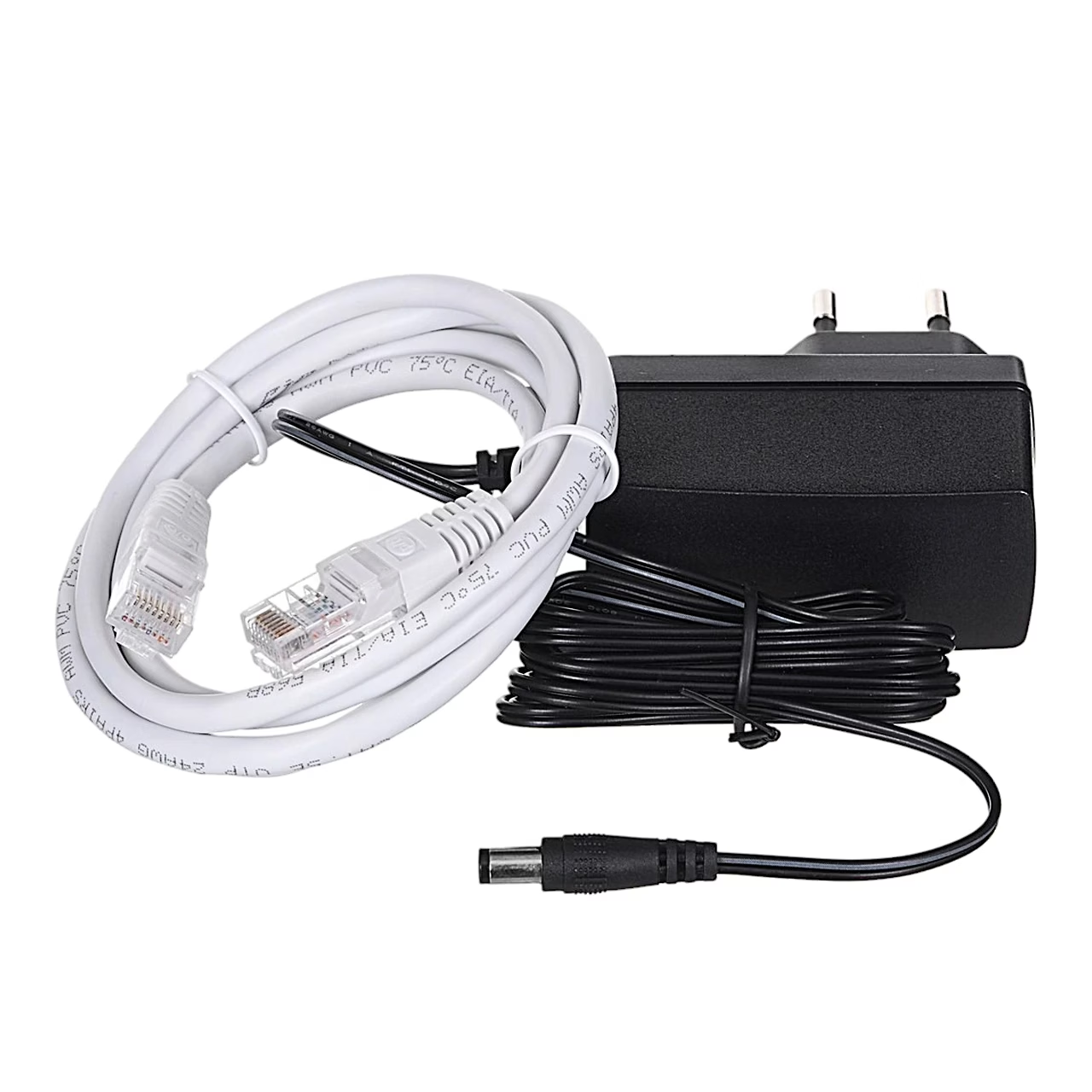
- Power adapter
- Ethernet cable
- Quick installation guide





































Reviews
There are no reviews yet.